
Master Every
Video Screenshot
Complete walkthrough — from install to advanced capture. One camera button on every video, everywhere on the web.
Install in 60 Seconds
IMGLAB Video Screenshot is a Chrome extension loaded from a local folder. Follow these five steps and you’ll be capturing video frames in under a minute.
Click Add to Chrome — Free on the product page. Chrome will prompt for confirmation — click Add extension. The IMGLAB icon ⚡ appears in your Chrome toolbar. No sign-up, no account, no payment required.
In Chrome, type the following in the address bar and press Enter:
This opens your Extensions management page. Toggle Developer mode ON using the switch in the top-right corner of the page. The “Load unpacked” button will appear.
Click “Load unpacked”. A folder picker opens. Navigate to and select the folder you unzipped in Step 1 — the folder that contains the manifest.json file. Chrome will load the extension immediately. You should see IMGLAB Video Screenshot appear in your extensions list, and a camera icon 📷 will appear in your Chrome toolbar.
This is the most important setup step. Without it, the camera button will not appear on most websites.
Right-click (or click ⋯) the IMGLAB icon in the toolbar → “This can read and change site data” → select “On all sites”.
Navigate to any website with a video. Hover over the video — a small 📷 camera button will appear in the top-right corner (or your configured position). Click it. Your screenshot downloads instantly to your Downloads folder with a meaningful filename like IMGLAB-PageTitle-14-32-07.jpg.
Alternatively, press Ctrl+G anywhere on the page — the extension will automatically find the best video on screen and capture it.
chrome://extensions/ and click the ↺ refresh icon on the IMGLAB card. Your settings are preserved automatically.Full Settings Walkthrough
Click the 📷 extension icon in your Chrome toolbar to open the popup. The Settings tab has four control groups.
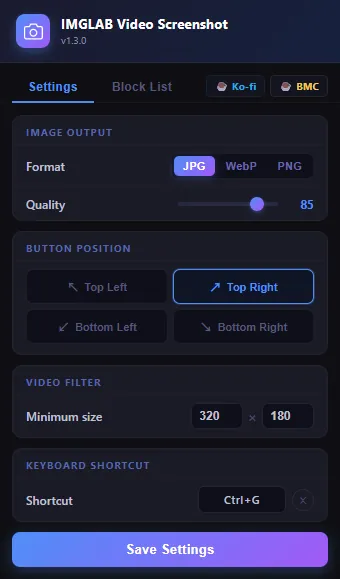
Choose your screenshot file format:
JPG is the default and best for most uses — smallest file size, fast to share, excellent visual quality at 80–90. A slight compression artefact may be visible at very low quality settings, but rarely matters for video frames.
WebP is a modern format developed by Google. At the same quality setting it produces smaller files than JPG. Best for uploading to websites or sharing digitally. Some older apps and Windows Photo Viewer may not support it — if you plan to open screenshots in older software, use JPG or PNG.
PNG is completely lossless — zero compression, zero quality loss, maximum file size. Use this when you need pixel-perfect accuracy: technical analysis, archiving, post-processing in a photo editor, or capturing text-heavy frames where compression artefacts would be noticeable.
The quality slider controls JPEG and WebP compression, on a scale of 10 (maximum compression, smallest file) to 100 (near-lossless, largest file). The default value is 85, which provides excellent visual quality at a reasonable file size — suitable for virtually all everyday uses.
Increasing quality beyond 90 produces diminishing returns for most video content. Lowering below 70 may introduce visible compression blocks on fine details and gradients.
Choose which corner of the video the 📷 camera button appears in. The default is Top Right. All four corners are supported.
Bottom positions are automatically offset 54 pixels upward to clear the player control bars that most video players display along the bottom edge. If our button still overlaps a site’s controls or branding, try a different corner.
Set a minimum video display size (width × height in pixels) before the camera button is injected. The default is 320 × 180 px. Any video element smaller than this will be silently ignored.
This prevents the camera button from cluttering tiny thumbnail preview players, animated ad units, or decorative background video loops that you would never want to screenshot.
The default keyboard shortcut is Ctrl+G. To change it:
1. Click the shortcut display box — it shows “Press keys…”
2. Press your desired key combination (any key + optional Ctrl, Alt, or Shift modifiers)
3. The shortcut saves automatically — no Save button needed
4. Click the × button to reset to the default Ctrl+G
chrome.storage.sync.Block List & Default Blocks
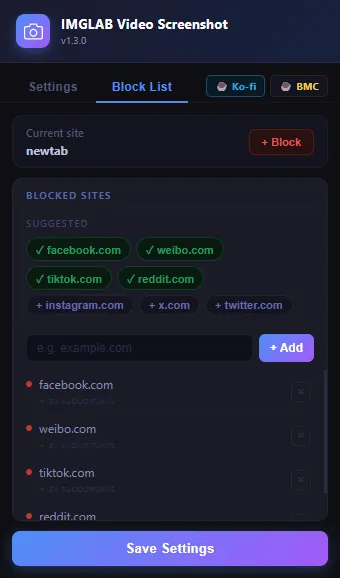
The Block List tab lets you disable the extension on specific domains. When a domain is blocked, no camera button is injected and the keyboard shortcut does nothing on that site. Blocking covers all subdomains automatically.
The top of the tab always shows the domain of the tab you opened the popup from. Click + Block to add it instantly. The button shows ✓ Blocked if already listed.
One-click chips for common social platforms: instagram.com, x.com, twitter.com. Chips with a ✓ prefix are already in your list.
Type any domain in the input field and press + Add or Enter. The extension strips https://, www. and paths — just enter the bare domain.
Why Are These 4 Sites Blocked by Default?
IMGLAB ships with four sites pre-blocked. This isn’t a shortcut or laziness — it reflects deep investigation into each platform. These sites have made deliberate engineering decisions at the infrastructure level that make compatibility impossible, not merely difficult. We’ve documented every case so you know exactly what we encountered.
Facebook’s video player intercepts every click on the <video> element at the browser event level — before our button’s handler can fire. When you click our camera icon, Facebook’s proprietary event handler activates first and opens the video in its “cinema mode” fullscreen viewer. Our button is visible but physically unclickable. This is an intentional Facebook design decision to maximise in-platform engagement and prevent third-party tools from working with their media.
TikTok runs an aggressive MutationObserver-based anti-tamper system that monitors every DOM change inside its video container. The instant our camera button is appended, TikTok’s watchdog detects the DOM mutation, resets internal player state — and the video immediately pauses and freezes. We confirmed this through three independent debugging sessions, systematically eliminating all other possible causes. The freeze is triggered by the presence of our button element in the DOM — nothing else.
Weibo’s player renders a full-screen UI layer — progress bar, title card, control buttons — at a z-index higher than anything we can inject. When our tab-capture fallback takes a screenshot of the video region, it captures the UI overlay rather than the actual video content. The resulting screenshot is a picture of Weibo’s player controls, not the video frame. This is fundamentally useless as a screenshot tool, so rather than ship a broken experience, we block it by default.
Our extension detects videos by scanning for native HTML <video> elements. Reddit’s video player architecture does not expose a <video> tag in a way our content script can find. No button appears, and the keyboard shortcut silently returns “no active video found.” Since the extension provides zero functionality on Reddit, we block it by default to avoid confusion — there is nothing broken, there is simply nothing to do.
How Capture Works
IMGLAB uses two capture methods. It always tries Method A first — if that’s blocked by the browser’s security policy, it automatically falls back to Method B. No configuration needed.
Draws the current video frame directly onto an HTML5 <canvas> element at the video’s full native resolution — not the display size. This produces a pixel-perfect copy of the raw frame, including hard-coded subtitles or overlays baked into the video stream. Fast, clean, no browser UI artefacts.
Example: A news site hosting its own .mp4 files, or a blog embedding a video from its own CDN.
If the video is hosted on a different domain (e.g. a CDN, or a streaming platform’s separate video servers), the browser’s security policy blocks canvas access. The extension then calls chrome.tabs.captureVisibleTab, takes a full screenshot of the visible browser tab, and precisely crops it to the video element’s exact bounding rectangle using getBoundingClientRect() × device pixel ratio. Even iframe offsets are calculated correctly.
Limitation: This captures what’s on screen, so any player UI overlaid on the video will be included in the screenshot.
The extension identifies the target <video> element and attempts canvas capture. If the video is cross-origin, a SecurityError is thrown — the extension catches this silently and proceeds to Method B without any visible interruption.
all_framesMost video screenshot tools break when the video lives inside an embedded iframe from a different domain — the most common setup on modern streaming sites. IMGLAB uses Chrome’s extension privilege (all_frames: true + match_origin_as_fallback: true) to inject its content script directly into cross-origin iframes. This means the camera button appears even inside embedded video players that other tools can’t reach.
Sandboxed iframes silently block direct file downloads — no error, just nothing happens. IMGLAB detects when it’s running inside a sandboxed iframe and relays the download request to the top-level frame via postMessage. The top frame triggers a Blob URL + anchor click download, which always works reliably. Your file arrives with the correct filename: IMGLAB-PageTitle-HH-MM-SS.jpg — never a generic “download.jpg”.
The filename always uses the top-level page title, even when capturing from inside a cross-origin iframe. The iframe sends a IMGLAB_GET_TITLE message to the top frame, which responds with the page title. This means your files are always meaningfully named by the site you’re watching, not by the CDN domain the video is hosted on.
Smart Keyboard Shortcut
The keyboard shortcut Ctrl+G does more than just trigger a capture — it includes a smart video selection algorithm that works across the entire page, including embedded iframes.
When you press the shortcut, the extension evaluates all videos on the page and selects the best candidate: playing videos are preferred over paused ones, and among multiple candidates the one closest to the centre of your screen viewport is chosen. This works intuitively even on feed pages with multiple videos.
If no suitable video is found in the main page, the extension broadcasts the shortcut signal via postMessage to all child iframes. The iframe that has an active video captures it and reports back — seamlessly, with no visible delay or error. You never need to focus the iframe manually.
Open Settings, click the shortcut box, and press any key combination with optional Ctrl, Alt, and Shift modifiers. Click × to reset to default. If your chosen combination conflicts with a website’s own shortcut, the site usually wins — pick something unusual or use the click button instead.
Known Limitations
When Method B (tab capture) is used, the screenshot includes everything visually on screen within the video area — including any player UI overlaid on top of the video. Control bars, loading spinners, “Click to expand” banners, or hover-state buttons can appear in the screenshot.
This is a fundamental constraint of captureVisibleTab: it photographs pixels on screen, not raw video data. Chrome provides no API for extensions to access raw cross-origin video frames — that data is protected for security and copyright reasons.
Videos protected by Widevine, PlayReady, or similar DRM systems are rendered on a hardware-protected graphics compositing layer that is intentionally inaccessible to any software running in user space — including browser extensions. Canvas capture returns a solid black frame.
This protection is enforced at the OS and GPU driver level and is legally required under content licensing agreements. No browser extension can bypass it. Netflix, Disney+, Amazon Prime, and most major streaming services with premium content use DRM.
On certain sites that use cross-origin iframe video players in fullscreen, Chrome suppresses visual repaints inside the iframe when DevTools is not open — a known Chrome rendering behaviour. Our “Screenshot saved!” toast is added to the DOM correctly but may not visually appear on screen.
The screenshot is still saved. The toast is purely cosmetic feedback. Check your Downloads folder if you’re unsure whether a capture worked.
On social media feeds (Twitter/X, Instagram) where multiple videos are simultaneously visible and playing, the keyboard shortcut’s smart picker may occasionally select a video you didn’t intend — especially when videos are evenly spaced and you’re scrolled between them.
The web is enormous. Every site engineers their video player differently — some use native <video> elements, some use proprietary player frameworks, some use unconventional DOM structures. While we work reliably on the majority of video sites, we cannot test every platform.
Sites using standard HTML <video> elements work reliably. Sites with heavily custom players or unusual iframe architectures may not. We actively want to support more sites — see the Support section.
YouTube Shorts displays its own icon in the top-right corner of the video player. Our default position (also top-right) causes overlap, making our button hard to click.
Site Compatibility Reference
Support & Donations
This Extension
Lives on Your Support
IMGLAB Video Screenshot is and will remain completely free — no ads, no subscriptions, no data collection of any kind. All the development, debugging, platform research, and compatibility testing you benefit from is funded by community donations.
We’ll be direct: whether this project continues to grow honestly depends on whether enough people support it. If you’ve saved screenshots you’re happy with — a one-time coffee is the best way to say “keep going.” No guilt either way — but every contribution keeps the update cycle alive.