
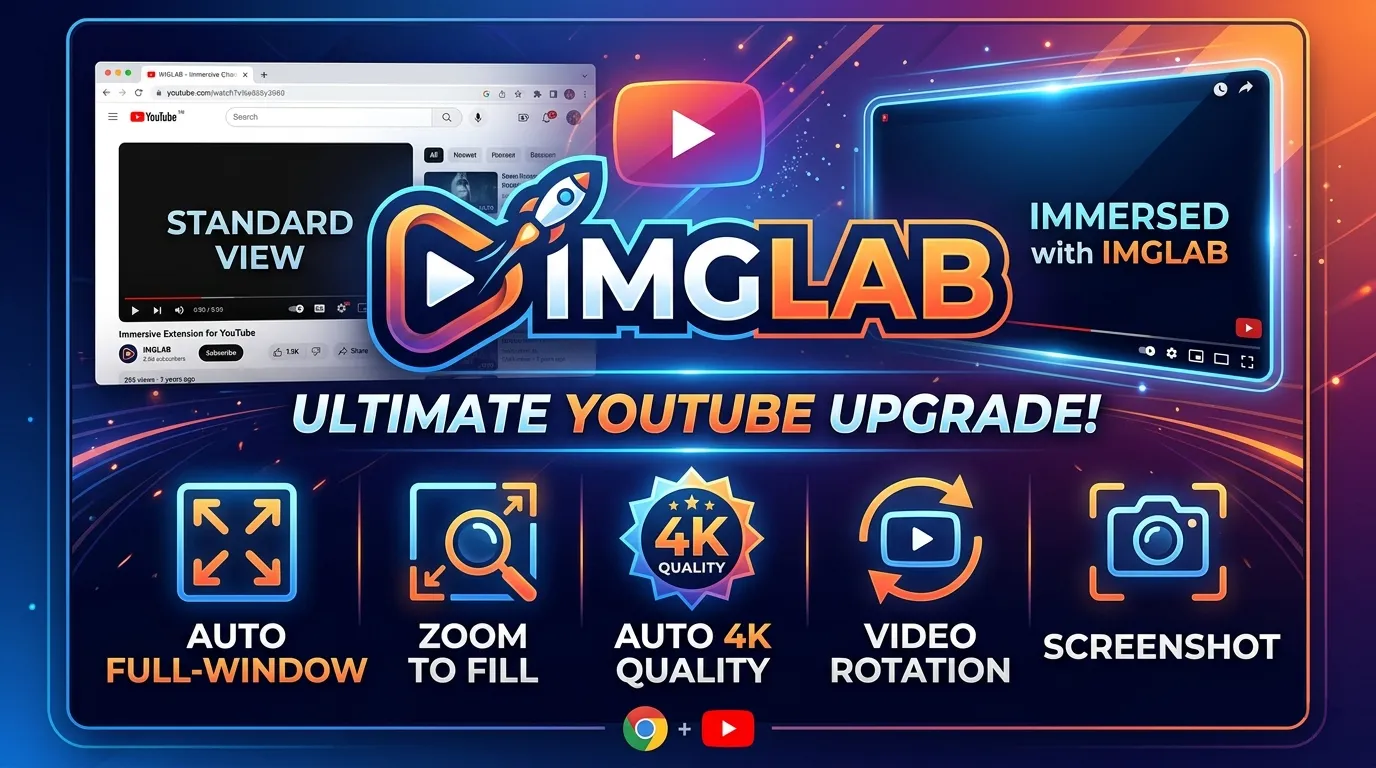
Pure YouTube.
Video Only.
Complete walkthrough — from install to advanced features. Auto theater mode, forced 4K, zoom to fill, video rotation, and built-in screenshot capture. Everything you need to know.
Install in 60 Seconds
IMGLAB YouTube Immersive is a Chrome extension that works exclusively on YouTube. Install it once and every YouTube video automatically becomes a distraction-free experience.
Click Add to Chrome — Free on the product page. Chrome prompts for confirmation — click Add extension. The IMGLAB ▶ icon appears in your Chrome toolbar. No sign-up, no account, no payment required.
Navigate to any youtube.com/watch?v=... page. The extension activates automatically — no button to press. Within one second you’ll see: theater mode engaged, the navbar slides up, and the extension icon badge shows the active quality (e.g. 4K).
Three new buttons are injected into YouTube’s player controls (right side): 📷 Screenshot, ↗↙ Zoom to Fill, and ↺ Rotate. They sit to the left of the existing controls. Hover the player to reveal them — they behave like native YouTube buttons.
Click the IMGLAB ▶ icon in your toolbar to open the popup. Two tabs — Settings and Shortcuts — give you full control. All changes apply immediately to the active tab. No page refresh needed.
chrome://extensions/ → Update, or via the Chrome Web Store. All saved settings and preferences are preserved across updates.What Happens Automatically
On every YouTube watch page, the extension activates with zero user interaction. Here’s exactly what it does and in what order.
The extension calls YouTube’s own theater mode button click (same as pressing T) if the player isn’t already in theater mode. It waits for the video’s readyState ≥ 1 before doing so — never fires on a blank player. YouTube’s SPA navigation is handled via yt-navigate-finish, so every video in a playlist or subscription feed triggers the check correctly.
Depending on your settings, the extension hides: the navbar (slides up, returns when you move the mouse to the top), live chat with full column collapse (no black gap), endscreen cards, and comments & sidebar. YouTube’s ambient glow (ytd-cinematics) is always killed — pure black background around the video, no color bleed.
The MAIN-world script (player.js) receives a quality request via CustomEvent. It waits 800ms for the player API to populate available quality levels, then calls setPlaybackQualityRange(), verifies 300ms later that it was applied, and retries once if not. The extension icon badge updates to reflect the active quality.
Screenshot, Zoom, and Rotate buttons are injected into .ytp-right-controls. Because YouTube rebuilds this element during theater mode entry, ad transitions, and fullscreen changes, the extension uses a 4-retry strategy: 500 / 1500 / 3000 / 5000ms. A MutationObserver on document.body also watches for the element being rebuilt and re-injects immediately.
For 8 seconds after navigation, YouTube recommendation and upsell popups (tp-yt-paper-dialog, ytd-mealbar-promo-renderer) inside ytd-popup-container are hidden. Only these specific elements are targeted — the container itself is never touched, so IMGLAB’s own screenshot toasts and other overlays are unaffected.
Popup — Settings Tab Walkthrough
Click the ▶ extension icon to open the popup. The Settings tab opens by default. Four cards group related settings clearly.
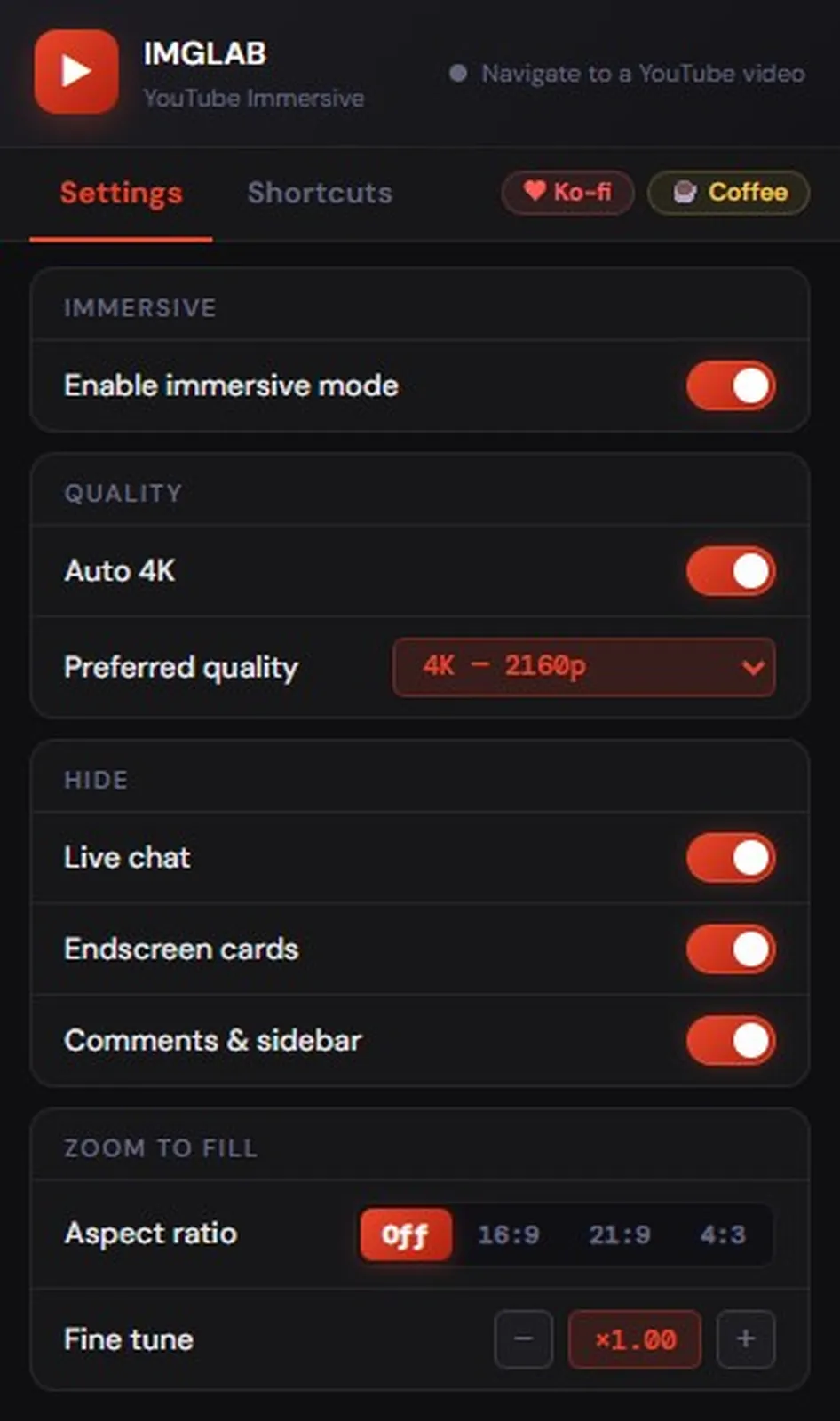
The master toggle for the entire extension’s active state on the current tab. When OFF: theater mode exits (restoring any pre-immersive state), all hidden elements reappear, and the ambient glow returns. When toggled back ON: everything re-activates immediately. This setting is saved to storage — it persists across sessions and page navigations.
The Auto HD toggle controls whether quality is forced at all. The label updates dynamically — if your preferred quality is 4K it shows “Auto 4K”, FHD shows “Auto FHD”, and so on.
The Preferred quality dropdown sets the target: Highest (8K), 4K, 1440p, 1080p, 720p, 480p, 360p. Default is 4K (2160p). The extension picks the best available match — if the video doesn’t have 4K, it selects the next best available quality below your preference.
Each toggle hides a specific part of the YouTube watch page. All three default to ON. Changes apply immediately — no navigation needed.
Live chat — fully collapses the chat column (no black gap). Targets YouTube’s actual layout container that holds 402px even when chat is empty.
Endscreen cards — hides the overlapping recommendation cards that appear in the final 15–20 seconds.
Comments & sidebar — hides the description, comments section, and the recommendations sidebar below the player.
The aspect ratio pill group selects the zoom preset: Off / 16:9 / 21:9 / 4:3. The selected pill lights up in red. Changing the preset applies immediately to the video.
The Fine tune row lets you adjust zoom ±0.1 per click. The scale label (e.g. ×1.00) shows the current fine zoom. Double-click the label to reset fine tune back to ×1.00 without changing the AR preset.
Popup — Shortcuts Tab Walkthrough
The Shortcuts tab handles settings you configure once — player button visibility, screenshot behaviour, and keyboard bindings.
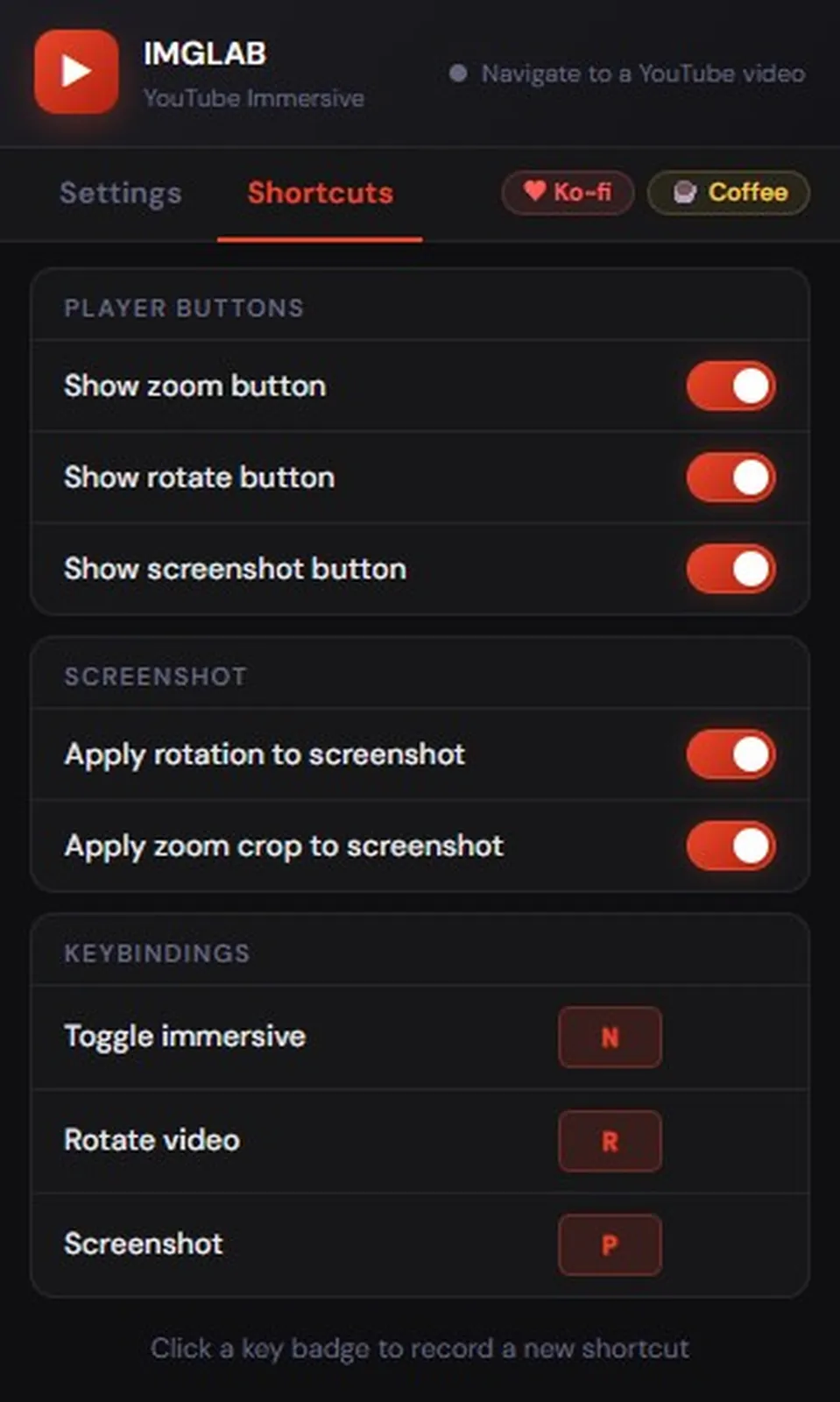
Three toggles independently control whether each button appears in YouTube’s player controls. All three default to ON. Turning one off removes it from the player immediately — useful if you never use rotation and want a cleaner controls bar.
These buttons are injected to the left of YouTube’s own controls (autonav, subtitles, settings, theater, fullscreen).
Apply rotation to screenshot — when ON, screenshots respect the current rotation angle. A 90° rotation produces a portrait JPEG with the canvas rotated accordingly. When OFF, screenshots always save in the video’s native landscape orientation regardless of display rotation.
Apply zoom crop to screenshot — when ON, the screenshot is cropped to match exactly what the player is showing. When the video is zoomed 21:9, the top and bottom letterbox bars are cropped out. Crop is calculated per-axis — the full-resolution axis is always preserved.
Each row shows the action, the current key badge, and a Reset button (hover to reveal). To change a shortcut: click the key badge — it turns red and shows “…”. Press any key or key+modifier combination. Press Escape to cancel without changing the current key.
Supported modifiers: Ctrl, Alt, Shift, or any combination. Example: Ctrl+Shift+S is a valid screenshot shortcut.
A hint at the bottom of the Shortcuts tab reminds you to click a key badge to start recording.
All Three Keyboard Shortcuts
Zoom to Fill — Complete Guide
Zoom to Fill removes letterbox and pillarbox bars by scaling the video element to fill the player. It works in immersive mode and normal mode, and at any rotation angle.
Single click — toggles between Off and 21:9. The most common use: click to remove widescreen letterbox bars instantly.
Scroll up/down — fine-tunes the zoom ±0.05 per scroll step. Label switches to show the actual ratio (e.g. ×1.31) rather than the preset name.
Scroll back to ×1.00 — auto-resets to Off. You don’t need to click to deactivate.
The popup offers ±0.1 step fine tune buttons and an AR preset selector. Double-click the scale label (e.g. ×1.00) to reset fine tune to ×1.00 without clearing the AR preset. The popup stays in sync with the player button — scrolling the player button while the popup is open updates the display within 500ms.
Aspect Ratio Presets
overflow:hidden for fine tune — use as a fine-tune anchor1.0 / AR_SCALES[currentAR], not a hardcoded 1.0. This means with 21:9 active (base ×1.31), fineZoom can technically be 0.76 because the total remains ×1.00. Without this, the minus button breaks completely whenever any AR preset is active.Zoom + Rotation Together
When a rotation is active alongside zoom, both transforms are calculated in a single applyVideoTransform() call. At 90°/270°:
Where rotationFillScale = Math.min(playerHeight / videoOffsetWidth, playerWidth / videoOffsetHeight). Both values are multiplied together before writing to video.style.scale. Two separate assignments would overwrite each other — this never happens.
Video Rotation
Rotate any video 90° at a time. Useful for vertical phone recordings uploaded as landscape videos, or for reading text in rotated orientation.
Press R to cycle: 0° → 90° → 180° → 270° → 0°. The ↺ button in the player controls does the same. Rotation state resets on every navigation — each new video starts at 0°. Scale recalculates automatically on window resize and when theater mode changes.
At 90°/270° the video’s visual footprint swaps axes. The scale formula is:scale = Math.min(playerH / video.offsetW, playerW / video.offsetH)
Using video.videoWidth/Height (native resolution) gives ~0.34× — a tiny video in the centre. Offset dimensions give the correct 1.71× that fills the player correctly.
.ytp-right-controls on theater mode changes, ad transitions, and fullscreen entry. The retry system (500 / 1500 / 3000 / 5000ms) will restore it within 5 seconds. If it doesn’t come back, toggle immersive off and on via the popup to force a re-injection.Built-in Screenshot
Capture the exact frame you see — including the current rotation and zoom crop. Screenshots are saved as JPEG at 85% quality with a title and timestamp filename.
Press P anywhere on the watch page or click the 📷 camera button in player controls. A toast notification appears at the bottom of the screen for 2 seconds confirming the save. Both trigger identically — same output, same filename.
The canvas draws at video.videoWidth × video.videoHeight — the stream’s actual pixels. A 4K video captures at 3840×2160 before any crop. The final file size depends on JPEG compression at 85% and how much of the frame is cropped by the zoom setting.
With “Apply rotation” ON: the canvas dimensions swap for 90°/270° (portrait output). ctx.translate(cx, cy) → ctx.rotate(angle) → ctx.drawImage() is applied before saving. The output JPEG orientation matches exactly what you see on screen.
With “Apply zoom crop” ON: the visible fraction is calculated per-axis.fracX = min(1.0, playerW / (videoOffsetW × zoom))
An axis with frac = 1.0 is fully visible — it is not cropped. Only the clipped axis shrinks. Example: 4:3 zoom on 854×480 saves as 640×480 (sides cropped, full height preserved) — not 641×360.
Filename Format
My Video Title 4-32.jpgFormat: {video title} {minutes}-{seconds}.jpg. The title is pulled from YouTube’s own heading element (h1.ytd-watch-metadata). For videos over an hour, hours are prepended: 1-04-32.jpg. Windows-invalid characters in the title are replaced with underscores.
Quality Badge on the Extension Icon
The extension icon shows a gold badge with the current quality — so you never need to open the popup just to check what’s active. The badge is per-tab, meaning each YouTube tab can show a different quality independently.
background.js (the service worker) when content.js sends a SET_BADGE message. If it stays blank or shows the wrong value, try navigating to the video again or reloading the page. The badge only updates after the quality request completes — typically 1–2 seconds after page load.Known Limitations
This extension only works on youtube.com watch pages. It does not inject anything on other video sites — that’s what IMGLAB Video Speed Control and Video Screenshot are for. On non-watch YouTube pages (home, subscriptions, search), the popup shows “Navigate to a YouTube video”.
If a video doesn’t have your preferred quality available (e.g. a 720p-max upload when you’ve set 4K), the extension picks the next best available quality below your preference. The badge will show the actual quality applied, not your preference.
YouTube rebuilds .ytp-right-controls silently during theater entry, ad transitions, and fullscreen changes. There’s a brief window (up to 5 seconds) where the zoom, rotate, and screenshot buttons are absent while the retry system re-injects them.
YouTube live videos with chat open use a different layout (squeezeback). The extension handles this with #panels-full-bleed-container collapse, but some edge cases in the live/theater layout can result in a slightly narrower player on first load until the layout settles.
YouTube periodically changes its DOM structure, class names, and player API. Changes to .ytp-right-controls, #panels-full-bleed-container, or the quality API can break injection, layout fixes, or quality control without warning. These issues are fixed in extension updates.
The screenshot toast notification may not be visible while in fullscreen because Chrome suppresses some DOM repaints inside fullscreen contexts. The screenshot file is still saved to your Downloads folder correctly — the toast is purely cosmetic.
Support & Donations
This Extension
Lives on Your Support
IMGLAB YouTube Immersive is completely free — no ads, no data collection, no subscriptions. Every fix you’ve benefited from — the live chat gap, per-axis crop math, the zoom-rotation unified transform — took real debugging time. Your support funds all of it.
Whether this project continues to grow honestly depends on community support. If you’ve watched videos in peace, caught a screenshot at the perfect moment, or zoomed a widescreen film to fill your display — a one-time coffee is the best way to say “keep going.”
chrome://extensions/, find IMGLAB, and click Service worker to inspect it.#panels-full-bleed-container layout edge case — try reloading the live video page.