
Control Every Video
At Any Speed
Complete walkthrough — from install to advanced shortcuts. A draggable overlay on every video, 13 remappable keyboard shortcuts, per-site speed memory, and full YouTube SPA support.
Install in 60 Seconds
IMGLAB Video Speed Control is a Chrome extension. Follow these steps and you’ll have a speed controller on every video in under a minute.
Click Add to Chrome — Free on the product page. Chrome will prompt for confirmation — click Add extension. The IMGLAB icon ⚡ appears in your Chrome toolbar. No sign-up, no account, no payment required.
Navigate to YouTube, a lecture site, a news site, or any page with an HTML5 <video> element. The speed overlay appears automatically in the top-left corner of each qualifying video. No configuration needed for first use.
[ − ] [ 1.50 ] [ + ] [ × ] by default. The speed number in the middle is your current playback rate.Your very first action: make sure the page has focus (click anywhere outside a text input), then press C. The overlay updates from 1.50 to 1.75. Press X to go back down. The speed badge on the extension icon updates in real time.
Click the IMGLAB icon ⚡ in your toolbar. The Settings tab opens by default. Here you configure preferred speed, step size, min/max limits, cycle speeds, and controller opacity. The Shortcuts tab lets you remap every key. Changes apply instantly — no page refresh needed.
chrome://extensions/ → Update). Your saved settings and per-site speed memories are preserved automatically across updates.The On-Page Speed Controller
A compact [ − ] [ 1.50 ] [ + ] [ × ] overlay attaches automatically to every video. It lives inside a shadow DOM — completely isolated from the page’s own styles so it looks the same everywhere.
[ − ] decreases speed by one step (default: −0.25×)
[ 1.50 ] shows current playback rate — drag to move the overlay, or double-click to toggle between 1× and your preferred speed
[ + ] increases speed by one step (default: +0.25×)
[ × ] hides the overlay. It stays hidden until you press H to show it again
Click and hold the speed number in the middle of the overlay and drag it anywhere on the video. The overlay remembers its position for the current session. Release anywhere — the position is preserved until you refresh the page or the video player changes.
Double-click the speed number to toggle instantly between 1× and your preferred speed (default: 1.5×). Useful when you want to slow down temporarily to catch a detail and then snap back to your normal watching speed. The same double-click toggle is also available on the popup’s speed badge.
The overlay only attaches to videos larger than 200 × 100 px. Tiny thumbnail previews, ad players, and decorative background videos are skipped. On YouTube specifically, the hover-preview video inside thumbnail cards is blocked by an additional ancestor element check (YTD-VIDEO-PREVIEW) — the size check alone is not reliable on large screens.
Popup Walkthrough
Click the ⚡ extension icon to open the popup. The Settings tab opens by default. Two tabs — Settings and Shortcuts — give you full control without ever leaving the popup.
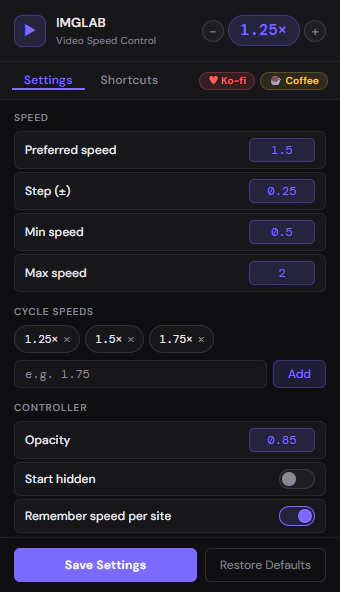
The header always shows the current tab’s speed as a badge (e.g. 1.25×). The [ − ] and [ + ] buttons adjust the speed on the active tab immediately — you don’t even need to be on the Settings tab. Double-click the speed badge to toggle between 1× and preferred speed.
Preferred speed — the speed you jump to when pressing V or double-clicking the overlay. Default: 1.5×.
Step (±) — how much speed changes per X/C keypress or overlay ± click. Default: 0.25×. Set to 0.05 for finer control, 0.5 for coarser jumps.
Min speed — the lowest allowed speed. Default: 0.5×. The clamp prevents accidentally going too slow.
Max speed — the highest allowed speed. Default: 2.0×. Increase this if you regularly watch at 3× or 4×.
The cycle list defines the speeds that B steps through in order. Default: 1.25× → 1.50× → 1.75×. Click the × on any chip to remove it. Type a new speed and press Add to append it — the list sorts automatically. Minimum 2 speeds for cycling to make sense.
Opacity — the overlay’s transparency at rest. Default: 0.85. The overlay always fades to full opacity (1.0) on hover regardless of this setting.
Start hidden — if toggled on, the overlay starts invisible on every new video. Press H to reveal it. Useful if you prefer a clean screen and only use keyboard shortcuts.
Remember speed per site — if on (default), each site hostname remembers its last-used speed. Turn this off if you want every site to always start at your preferred speed.
Save Settings — persists all current values to chrome.storage.sync. The button briefly turns green and shows “✓ Saved!” to confirm. Changes are immediately applied to the active tab as well. Restore Defaults resets everything to factory settings after a confirm prompt.
All 13 Default Shortcuts
Every shortcut is remappable from the Shortcuts tab. Shortcuts use capture-phase interception — they fire before page-level key handlers, ensuring they work even on sites with heavy keyboard handling. Shortcuts never fire while you’re typing in an input, textarea, or contentEditable element.
How Smart Key Handling Works (non-YouTube)
On non-YouTube sites, these three keys use a brief observation window before acting. After the keydown fires, the extension waits 80ms and checks if the video’s paused state or currentTime changed by more than 0.05s. If it changed — the site handled the key — and the extension does nothing.
If nothing changed after 80ms, the extension fires its own action — pause/play for Space, frame-step for Comma/Period. This prevents double-firing on any site that has its own Space or frame-step handler, while still working correctly on sites that don’t handle those keys at all.
Comma (frame back) and Period (frame forward) only fire when the video is already paused. If the video is playing, these keys do nothing — the site’s normal comma/period handlers (if any) receive the event instead. Frame step size is 1/30s (≈ 33ms), assuming 30fps.
Smart YouTube Support
YouTube requires special handling for three distinct reasons. IMGLAB handles all three automatically — you don’t need to configure anything for YouTube to work correctly.
YouTube is a Single Page Application. When you click a video from a subscription page, YouTube does not remove and re-add the <video> element — it reuses the same element and moves it to a new parent container. Our MutationObserver never fires. IMGLAB listens for YouTube’s own yt-navigate-finish event, detects stale controllers (wrapper in wrong parent → invisible rect), re-attaches to the correct parent, and re-applies your saved speed.
YouTube’s Space, arrow, comma, and period handlers take 80–100ms to execute. A “wait 80ms and check” approach fails because YouTube sometimes crosses the boundary on the slow side — causing both YouTube’s handler and ours to fire on the same keypress. Instead of a fragile timing race, IMGLAB simply skips these keys on YouTube entirely. YouTube’s seek animation, +5s bubble, progress bar, and frame stepping all work exactly as YouTube intended.
Hovering a YouTube thumbnail plays a short preview clip inside the card. IMGLAB prevents the overlay from attaching to these in two ways: a minimum size check (< 200 × 100px) and an ancestor tag check for YTD-VIDEO-PREVIEW. The size check alone is unreliable on large screens where the thumbnail card can exceed the threshold — the ancestor check is the definitive guard.
Between SPA navigations, before yt-navigate-finish fires, there’s a brief window where the controllers Map has stale entries. A document.contains(video) check in the keyboard handler prevents the stale state from calling e.preventDefault() on arrow keys during this transition window — YouTube’s seek always receives the event.
Every Site Remembers Your Speed
When “Remember speed per site” is enabled (the default), each site you visit stores its last-used speed. The next time you open a video on that site, IMGLAB sets it to your saved speed automatically — no manual adjustment needed.
Speeds are stored as { "hostname": speed } under the sitesSpeeds key in chrome.storage.sync. The hostname is normalised — www. is stripped and the string is lowercased. So www.youtube.com and youtube.com use the same key.
Sites you’ve never visited before start at your configured preferred speed (default: 1.5×). As soon as you change the speed, that value is saved for the hostname and will be restored on your next visit.
Some sites (including YouTube) reset playbackRate when a new video loads or auto-plays. IMGLAB listens for the play event and immediately re-applies the current speed if the site changed it — checking whether video.playbackRate differs from currentSpeed by more than 0.01.
Speeds sync to all your Chrome profiles via chrome.storage.sync. If you set YouTube to 1.5× on your work laptop, opening YouTube on your home desktop will also start at 1.5×. Toggle “Remember speed per site” off in Settings to disable memory globally while keeping everything else.
Known Limitations
The extension sets video.playbackRate directly on the HTML5 video element. Sites with DRM-protected content (Netflix, Disney+, Amazon Prime Video) use proprietary player SDKs that intercept and reset the playback rate. Speed control may not persist on these platforms.
The overlay wrapper uses position: absolute inside the video’s parent element. On sites where the video parent has unusual positioning context, overflow clipping, or CSS transforms, the overlay may appear offset or outside the visible video area.
The extension detects videos by scanning for native <video> HTML elements. Players built on WebGL, Flash-style objects, or fully custom rendering pipelines are not detected and will not receive an overlay or respond to speed shortcuts.
<video> elements. If a specific site isn’t working, check the browser console for errors and report it.Frame-by-frame navigation steps by 1/30s (≈ 33ms), assuming 30fps. For 24fps film content the step will skip slightly more than one frame. For 60fps content the step will land mid-frame. The HTML5 API does not expose the video’s actual frame rate.
Space, Comma, and Period use an 80ms observe delay on non-YouTube sites. If a site’s Space handler takes longer than 80ms, both the site’s handler and the extension may fire — causing double-pause. This was the original YouTube Space problem; the 80ms threshold works for most sites but not all.
The YouTube SPA fix uses YouTube’s own yt-navigate-finish event — a YouTube-specific signal. Other SPA sites (Vimeo, Twitch, etc.) may also reuse <video> elements without removing them, but we have no equivalent event to detect this. The overlay may be in the wrong position after navigation on those sites.
Support & Donations
This Extension
Lives on Your Support
IMGLAB Video Speed Control is completely free — no ads, no data collection, no subscriptions. Every fix you’ve benefited from — YouTube SPA navigation, shadow DOM pointer events, smart key timing — took real debugging time. Your support funds all of it.
Whether this project continues to grow honestly depends on community support. If you watch videos faster, absorb lectures more efficiently, or navigate frame-by-frame with this tool — a one-time coffee is the best way to say “keep going.”
chrome://extensions/.yt-navigate-finish to re-attach. If it’s still not working after a few seconds, refresh the page. Make sure you’re on v1.1.0 or later.playbackRate. This cannot be fixed by any extension — it’s enforced by the platform.