
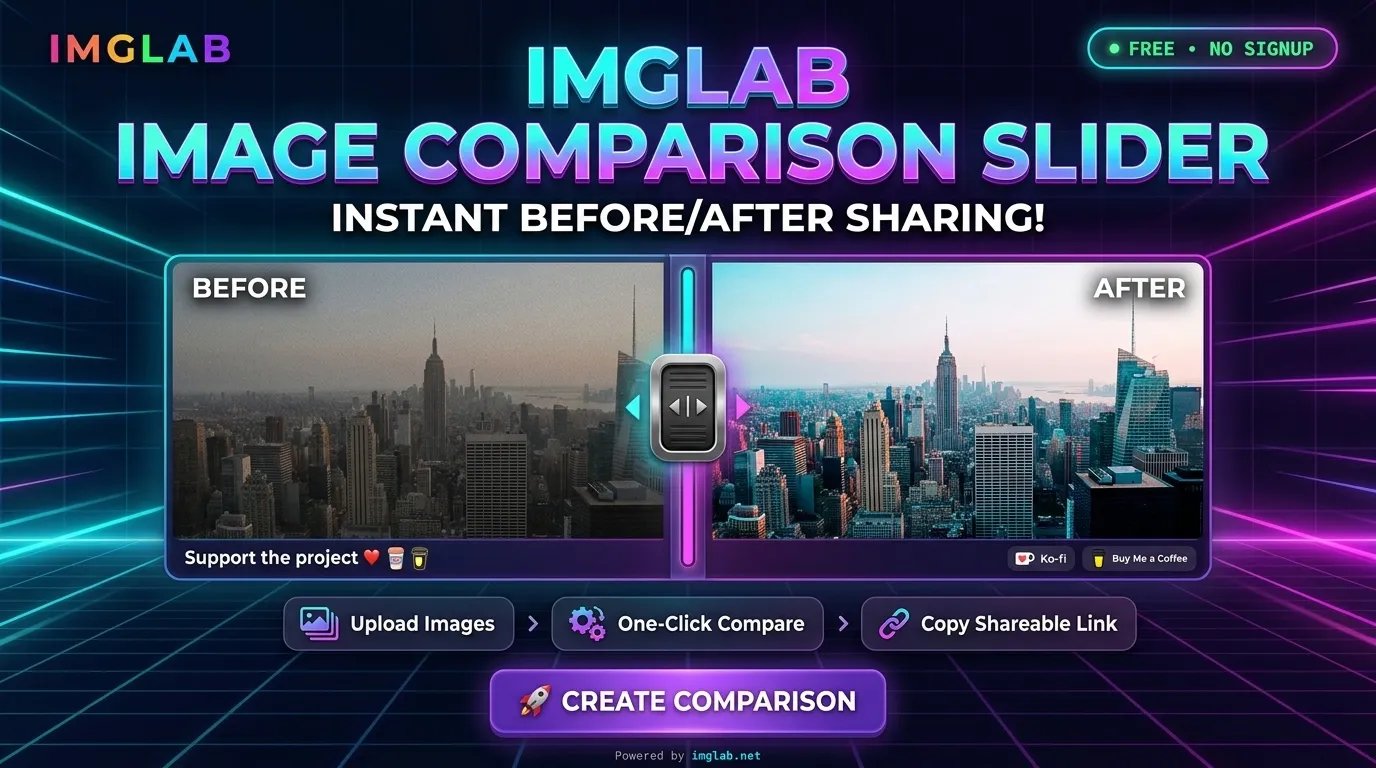
Before & After.
Instantly Shareable.
Create stunning drag-to-reveal image comparison sliders in three steps. No account, no watermark, no cost — just drop your images, click create, and share a live link. Works on any device.
What Is IMGLAB Slider?
IMGLAB Slider is a free, zero-friction tool that transforms any two images into an interactive drag-to-reveal comparison — and publishes it as a live shareable link in seconds.
A smooth vertical divider sits between your two images. Viewers drag it left or right to reveal more of either side — the classic before/after experience. Works with mouse, touchpad, and touch screen equally well.
Every comparison you create gets its own permanent URL at imglab.net/slider/. Copy the link, paste it anywhere — Twitter, Reddit, Discord, your blog — and anyone can view the interactive slider without installing anything or logging in.
Whether your audience is on a desktop with a mouse, a tablet, or a smartphone, the slider responds naturally. Touch-and-drag on mobile works identically to mouse-drag on PC. No app download, no Flash, no plugins — pure modern web.
IMGLAB Slider is completely free with no hidden fees, no watermarks, and no registration required. Your images are converted to WebP format before upload to keep file sizes small without sacrificing quality. No account means no password to forget and no emails in your inbox.
Create Your First Slider in 3 Steps
Head to the generator page and follow the three-step flow. The whole process takes under a minute — even on a slow connection, thanks to WebP conversion reducing file sizes before upload.

Drag and drop your two images directly onto the upload zone, or click anywhere in it to open a file picker. The first image you drop becomes Image A (left / before); the second becomes Image B (right / after).
Supported formats: PNG, JPG, WebP, AVIF, GIF. Both images are shown as preview thumbnails below the drop zone with their dimensions and file size displayed — so you can confirm you’ve selected the right files before proceeding.
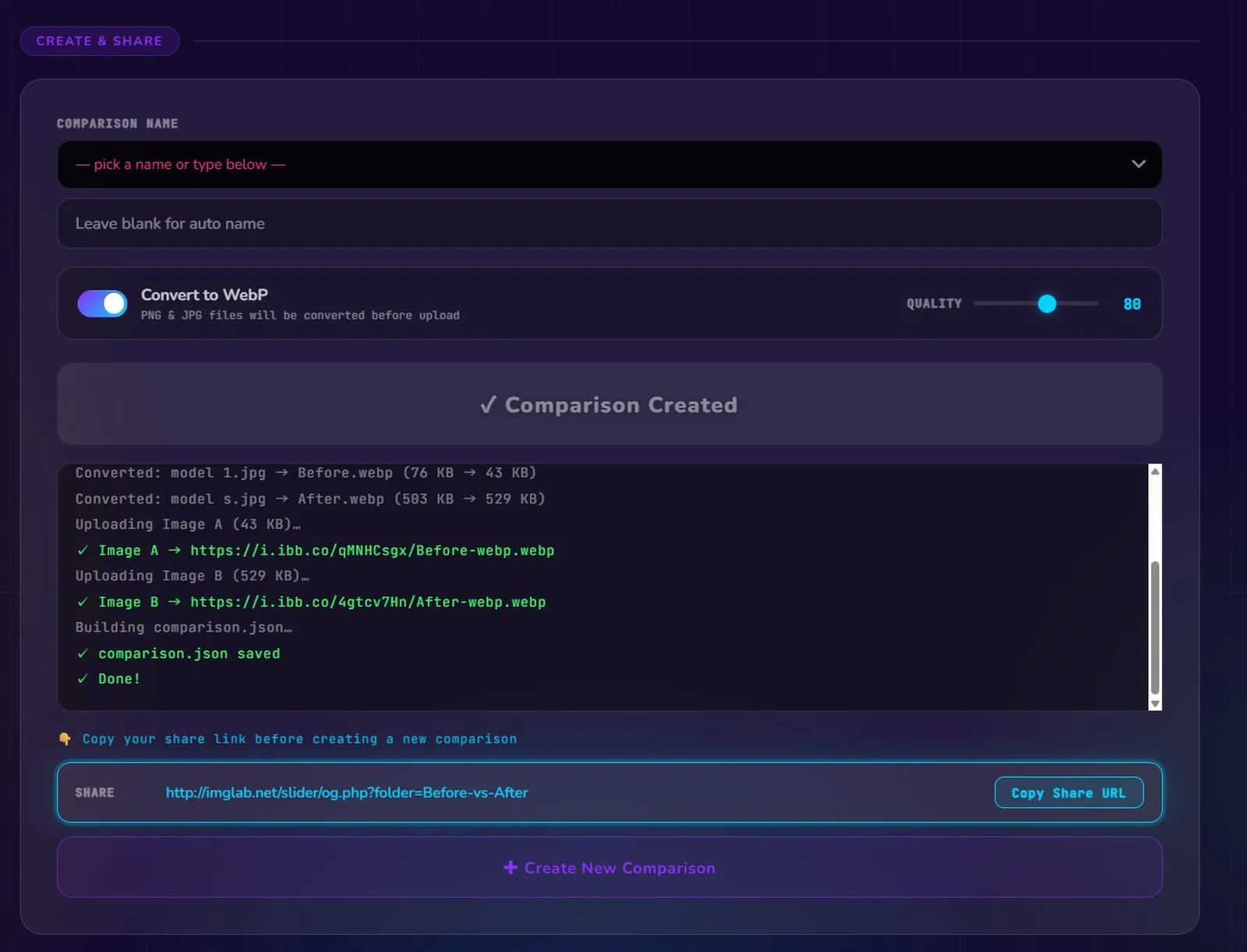
In the CREATE & SHARE section, you can optionally choose a descriptive name for your comparison from the dropdown (or type a custom one), or leave it blank for an auto-generated name.
The Convert to WebP toggle is on by default — it compresses your images before upload, dramatically reducing bandwidth while preserving perceptual quality. Adjust the Quality slider (0–100) to balance file size against image fidelity. The default of 80 is the sweet spot for most photos.
Click 🚀 Create Comparison. A progress log appears in real time, showing upload status for both images and confirmation when your comparison JSON is saved.
Once creation finishes, a permanent SHARE URL appears at the bottom of the log panel — something like http://imglab.net/slider/og.php?folder=Your-Name. Click Copy Share URL to copy it to your clipboard instantly.
That’s it. Paste the link anywhere. Anyone who opens it sees your interactive comparison slider — no account, no app, no friction.
Using the Interactive Slider
When someone opens your share link, they land on the full interactive viewer. Here’s everything they can do — and how it works on both desktop and mobile.
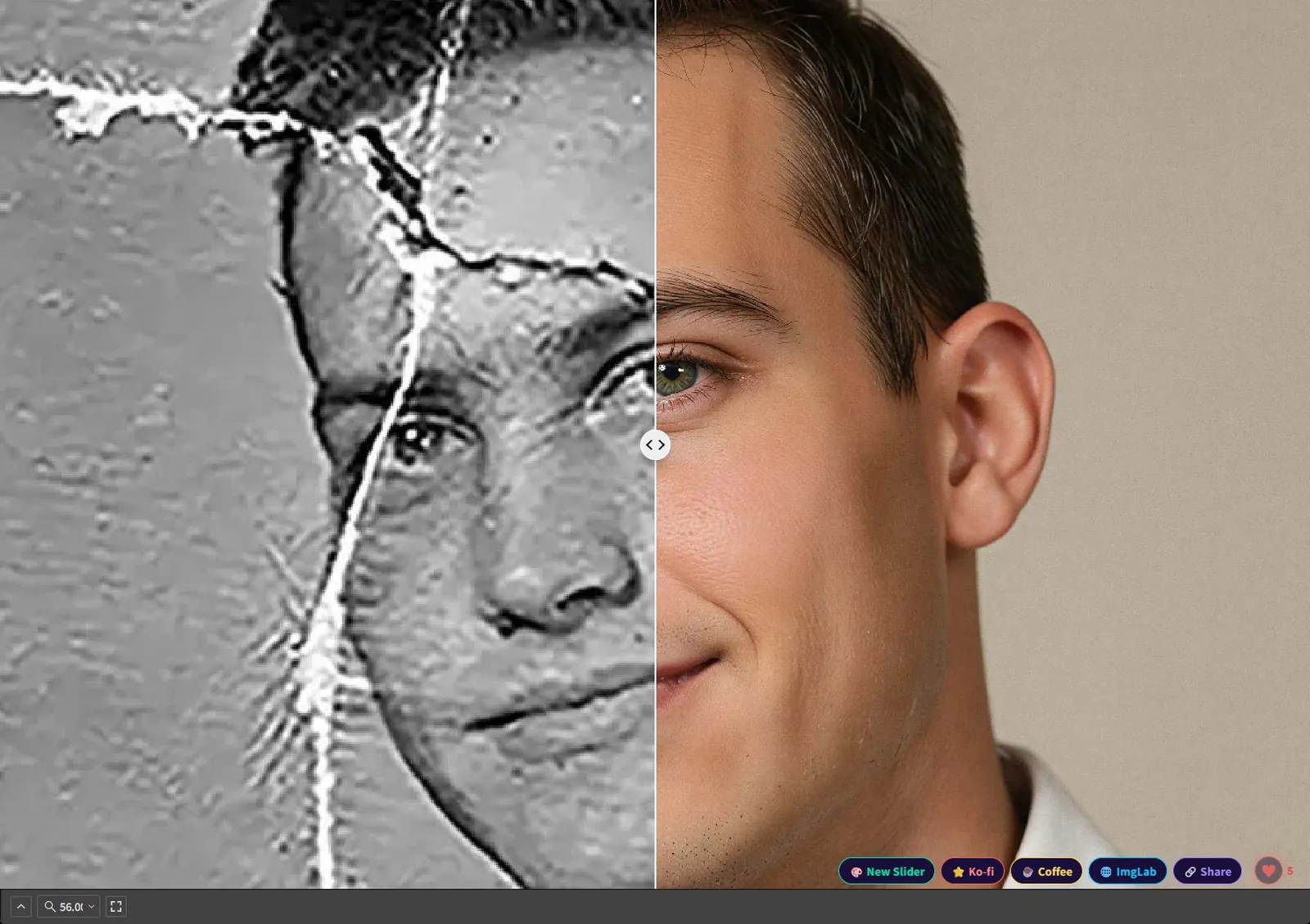
The core interaction: grab the ◁▷ handle at the centre of the divider line and drag it horizontally. On the left of the divider is Image A; on the right is Image B. Drag fully left to see 100% of Image B; drag fully right to see 100% of Image A. The transition is live and smooth — no loading between positions.
Desktop: Click and drag the handle with your mouse. Mobile / tablet: Touch and drag the handle with your finger. The touch target is generously sized so it’s easy to grab even on a small screen.
A zoom indicator in the bottom-left corner shows the current zoom level (e.g. 56.0%). There are three ways to control zoom:
- Scroll wheel — scroll up to zoom in, scroll down to zoom out. The zoom applies to the images only, leaving all controls and buttons unaffected.
- Type a value — click the zoom indicator and type any exact percentage you want.
- Preset ratios — click the zoom indicator to open a dropdown and pick from Fit, 50, 100, or 200.
On mobile, use pinch-to-zoom instead of the scroll wheel. The divider position is always preserved as you zoom.
A fullscreen button (the expand icon ⛶) is shown in the bottom-right corner of the viewer. Click it to enter fullscreen mode and see your comparison at maximum size — ideal for presentations, detailed inspection, or simply the most immersive before/after experience. Press Escape or click the button again to exit.
A row of action buttons appears in the bottom-right corner of the viewer overlay:
New Slider — opens the generator to create a new comparison without leaving the current page.
Ko-fi — a quick link to support the project.
Coffee — another support link via Buy Me a Coffee.
ImgLab — return to the IMGLAB homepage.
Share — copy the current slider’s URL to clipboard for easy sharing.
❤ N — the heart/like button with the current like count. See Section 4 for full details.
Press X on your keyboard to instantly swap the left and right images. The upload order no longer matters — you can always fix it in the slider. This is a desktop-only shortcut.
Show Your Appreciation with Hearts
Every slider has a live heart counter that lets viewers express just how impressive the comparison is — with a twist that rewards genuine enthusiasm.
Unlike a simple one-click like button, IMGLAB Slider lets each visitor give up to 5 hearts to a single comparison. Each tap on the ❤ button adds one heart — so if you’re truly blown away by a restoration or transformation, you can keep clicking to give it the recognition it deserves. Once you’ve given 5 hearts, your contribution is locked in for that comparison.
Your heart count for each comparison is stored in your browser. Refreshing the page or returning later doesn’t reset your count — the slider remembers how many hearts you’ve already given that specific comparison. You can give 1, 2, 3, 4, or all 5 in a single visit, or spread them across multiple visits.
The heart button displays the total accumulated hearts from all visitors in real time. When you add a heart, the count updates immediately — no page refresh needed. Share your slider and watch the hearts grow as your audience responds to the comparison.
Supported Formats & WebP Conversion
IMGLAB Slider accepts all common image formats and optionally converts them to WebP before upload — dramatically reducing file size while maintaining visual quality for faster-loading sliders.
When enabled (the default), your images are converted to WebP format entirely in your browser before upload. This is client-side processing — your original files are never sent to the server uncompressed. The Quality slider (0–100) controls the compression level. 80 is the default — excellent visual quality with roughly half the file size of the original JPG.
Drag the quality slider to adjust compression. For photographic content, values between 75–85 are visually indistinguishable from the original but significantly smaller. For detailed drawings, text overlays, or medical imaging where precision matters, increase to 90–95. For casual social sharing where speed matters more than pixel-perfect fidelity, 65–75 works well.
The progress log shows the original and converted file sizes side by side — for example: Converted: model 1.jpg → Before.webp (76 KB → 43 KB). This lets you see the exact savings before committing. If the converted size seems too large or too small, cancel and adjust the quality slider.
Support & Donations
This Tool Runs
on Your Support
IMGLAB Slider is completely free — no subscriptions, no watermarks, no data harvesting. Every feature you use — WebP conversion, permanent links, the heart system, touch support — was built and maintained by one person. Hosting, bandwidth, and development time all have real costs.
IMGLAB Slider exists because tools like this should be free for everyone — researchers, designers, hobbyists, and professionals alike. If you’ve shared a comparison that got a great response, or used it professionally, a one-time coffee directly supports keeping it available.
imglab.net/slider/og.php?folder=Your-Name. Try opening that directly.Ready to create?
🚀 Create Your First Slider — Free