
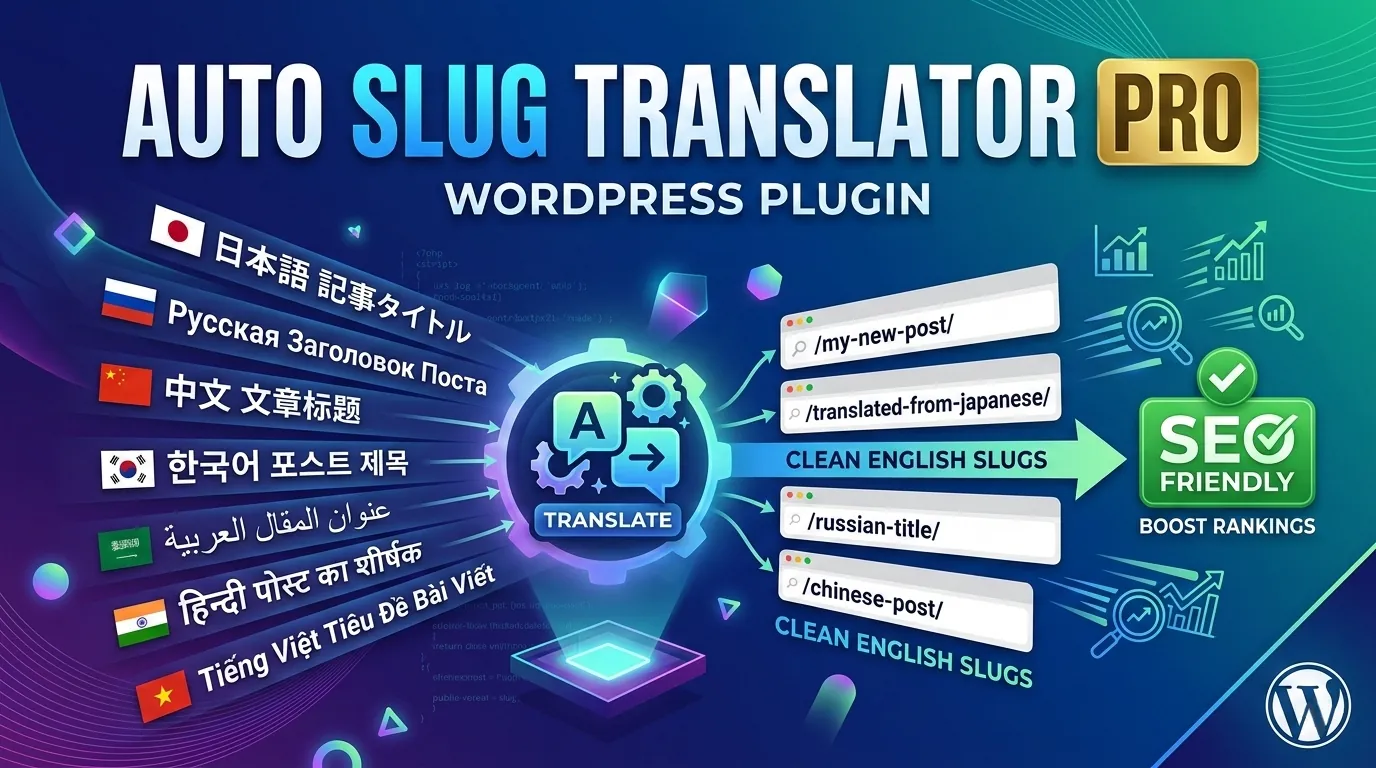
Clean URL Slugs,
Zero Effort
Complete setup guide, feature walkthrough, and troubleshooting for Auto Slug Translator — the WordPress plugin that turns non-ASCII titles into SEO-friendly English slugs automatically.
Install in Under 2 Minutes
Auto Slug Translator is available in two editions — a free version on WordPress.org and a Pro version with extended features. Both install the same way.
Free version: Search “Auto Slug Translator” on the WordPress.org plugin directory, or go to Plugins → Add New in your WordPress admin, search for “Auto Slug Translator”, and click Install Now.
Pro version: Download the Pro zip file from the link sent in your purchase confirmation email. You’ll receive it instantly after payment. Keep the zip file — you’ll upload it in the next step.
In your WordPress admin, go to Plugins → Add New → Upload Plugin. Choose the zip file you downloaded and click Install Now. When installation completes, click Activate Plugin.
For the free version via search: after clicking Install Now, click Activate directly.
If you purchased Pro, go to Settings → Auto Slug Translator. You’ll see a license key field at the top of the page. Paste the key from your purchase email and click Activate License. Pro features unlock immediately.
Go to Settings → Auto Slug Translator. The most important setting is “Auto-generate on save” — make sure this checkbox is ticked. With it enabled, the plugin will automatically translate every non-ASCII title into an English slug whenever you publish or update a post. No manual action needed.
Optionally, enter your email address to unlock the 50,000 character/day translation quota (Pro) or boost the free quota from 5,000 to 50,000 characters/day via MyMemory’s free registration.
[email protected] gives each site its own independent daily quota.Create a new post with a non-ASCII title — for example, Japanese: 東京のラーメン. When you publish or save the post, the plugin will automatically translate the title and set the slug to something like tokyo-ramen.
You can also manually trigger translation at any time by clicking the 🌍 Translate to English button inside the Gutenberg slug popover, or by using the dedicated panel in the Gutenberg sidebar.
Every Feature, Explained
Auto Slug Translator integrates into every part of the WordPress editor. Wherever you work, the translate button is right there.
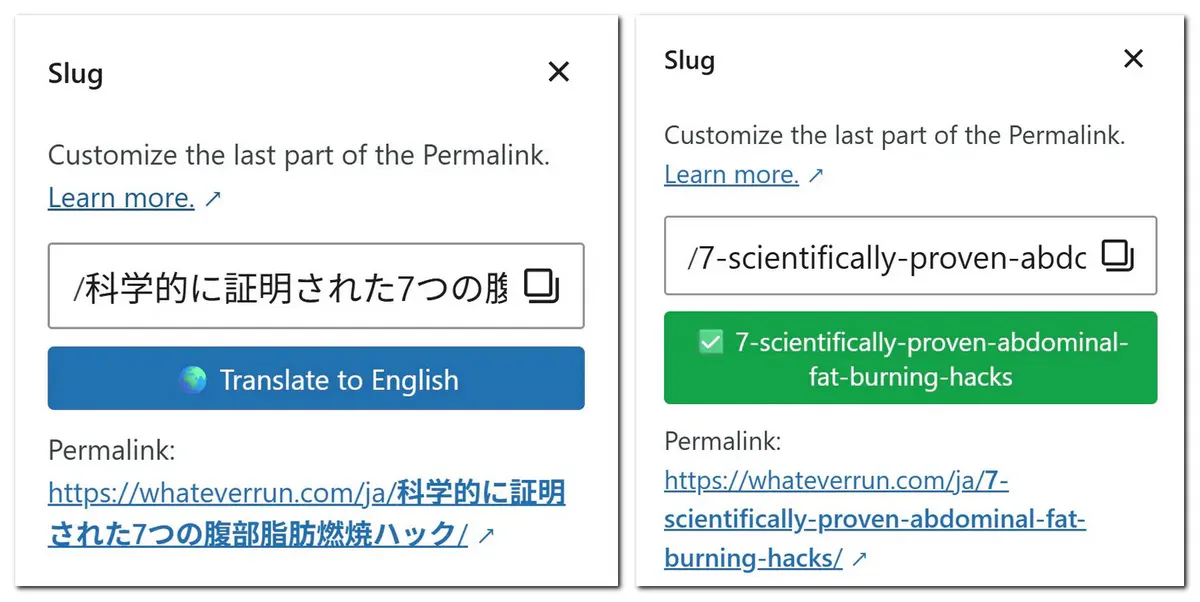
When you click the permalink area under the post title in Gutenberg to edit the slug, a “🌍 Translate to English” button appears automatically — right inside WordPress’s native slug popover. No need to open any extra panel. It only shows up when the title contains non-ASCII characters, so it never clutters posts that don’t need it.
- Appears only when title contains non-ASCII characters
- Fills the slug field instantly and updates Gutenberg state
- Popover stays open while translation is running
- Button turns green with ✅ after success — prevents accidental re-translation
- No post save required — you can translate before you’re ready to publish
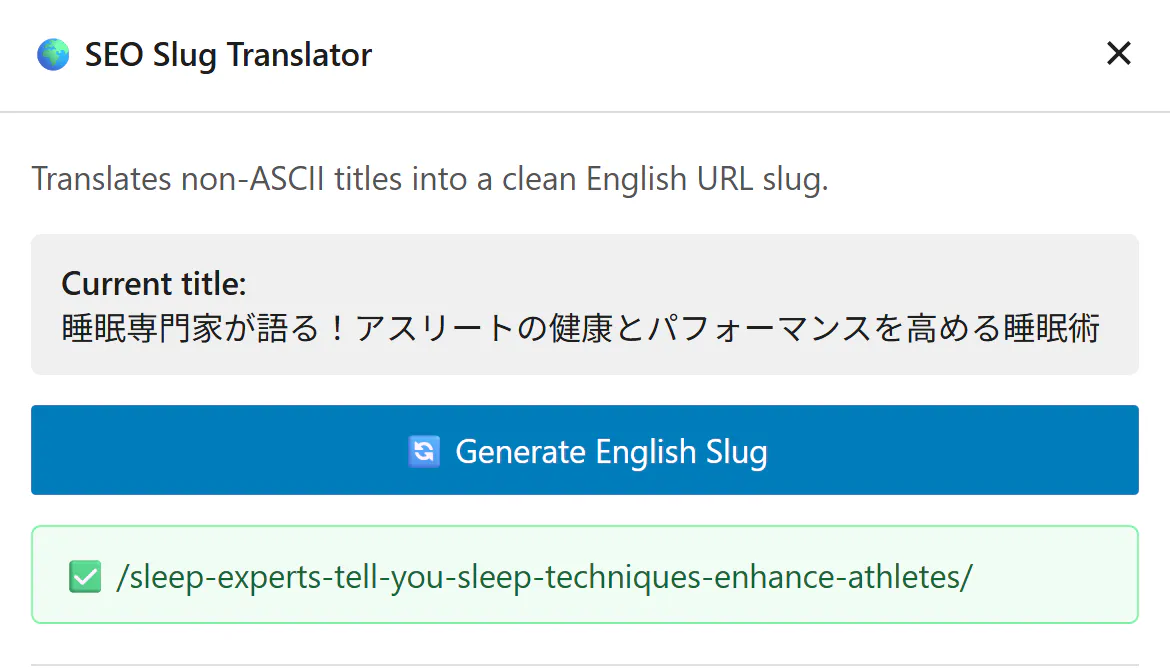
A dedicated plugin panel lives in the Gutenberg sidebar, accessible any time by clicking the plugin icon in the block editor toolbar. It shows your current post title so you can see exactly what will be translated, and gives you a one-click “Generate English Slug” button. Free users also see an upgrade link to unlock Pro features.
- Shows current post title before translating
- One-click slug generation without needing to open the popover
- Saves to database immediately — no post save needed
- Shows inline ✅ success or ❌ error message
- Free users see a non-intrusive Pro upgrade link
- Full Japanese UI translation included
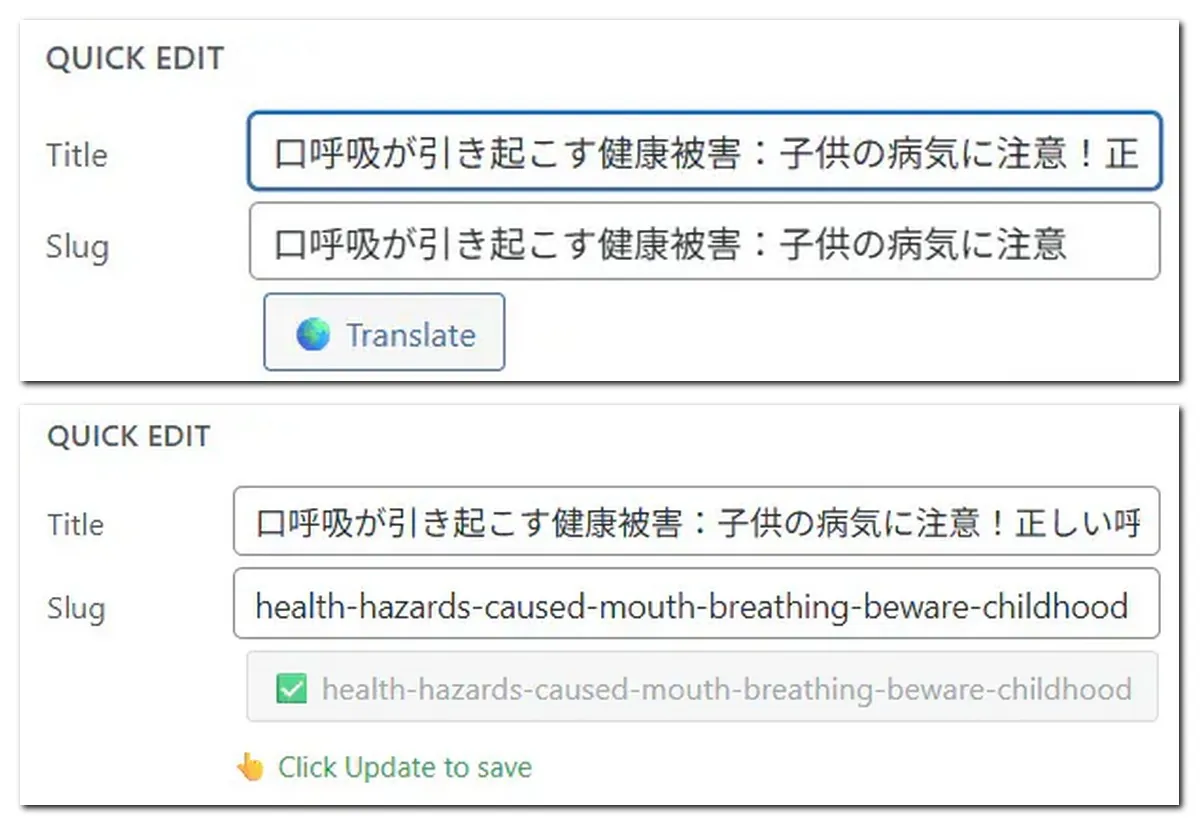
On the Posts list screen (the table of all your posts), the Quick Edit panel gets a Translate button right next to the slug field. Click “Quick Edit” on any post, then click the Translate button — the slug is filled instantly. Works on both posts and pages. The button only appears when the title or slug contains non-ASCII characters.
- Only shown when the title or slug contains non-ASCII characters
- Fills slug field instantly via Ajax — no page reload
- A “💾 Click Update to save” reminder appears after translation
- Works on both posts and pages
- Perfect for quickly cleaning up individual posts without opening the full editor
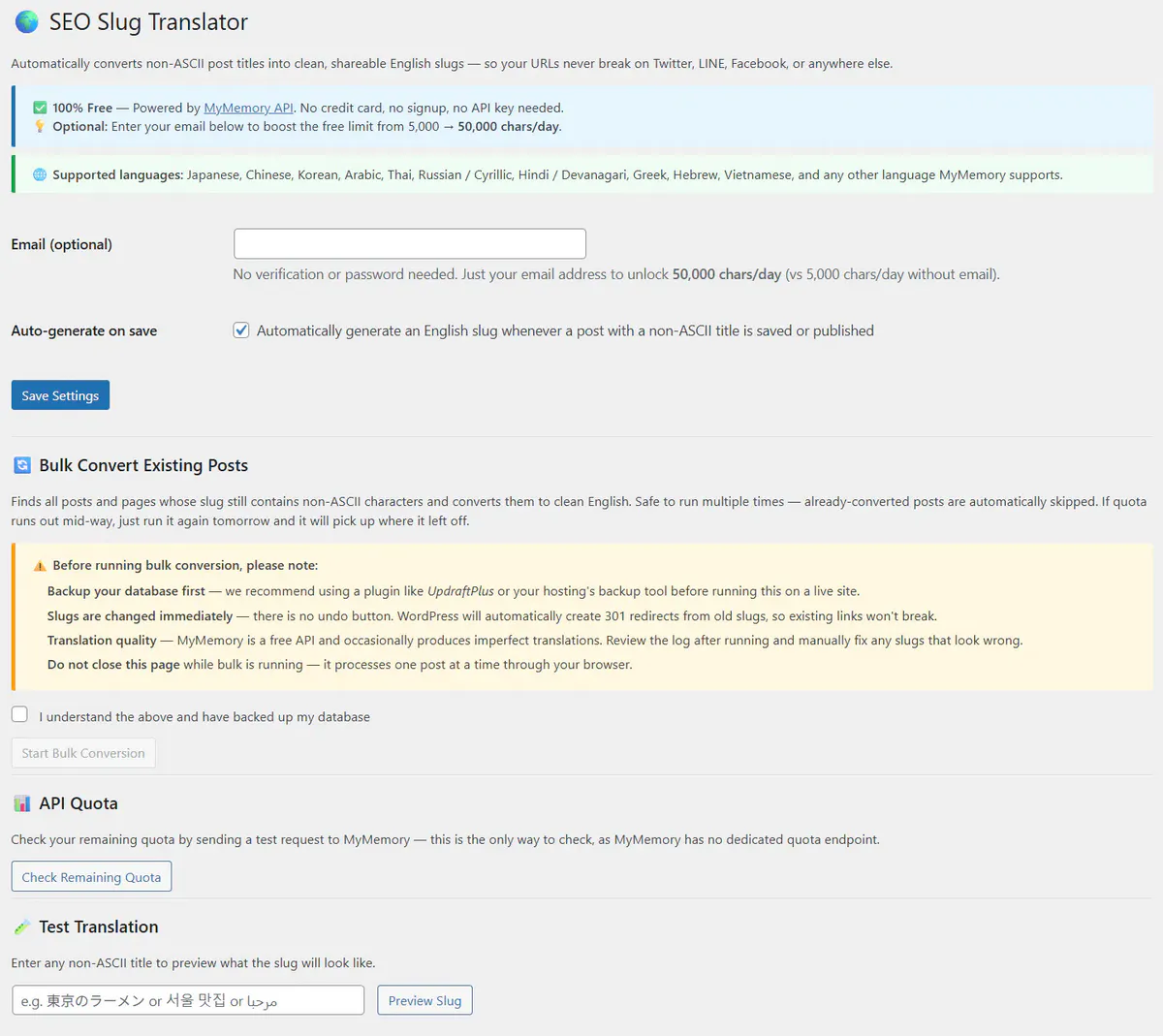
The settings page is your control center. Configure auto-generation behavior, enter your email for the extended quota, run the API Quota Checker to see how many characters you have left today, and use the Test Translation tool to preview any title before committing to it.
- Email field — unlock 50,000 chars/day quota (free with email, no account needed)
- Auto-generate toggle — enable or disable automatic slug generation on save
- Bulk Convert panel (Pro) — convert all existing posts at once
- API Quota Checker (Pro) — green ✅ / red 🔴 status with your registered email shown
- Test Translation tool — preview any title’s slug before saving any post
- Japanese UI available — full Japanese translation of every button and message
With the “Auto-generate on save” checkbox ticked in settings, the plugin hooks into WordPress’s save_post action. Every time you publish, update, or save a post with a non-ASCII title, it automatically detects the language, calls the translation API, builds a clean English slug, checks for duplicates, and saves it — all without any manual action from you.
- Fires on every publish and update action
- Works in Classic Editor and Gutenberg
- Only triggers for non-ASCII titles — ASCII titles are skipped
- Already-clean English slugs are never overwritten
- Manually-customized slugs are not touched after first save
- Duplicate slugs handled by WordPress’s built-in deduplication
Full Settings Walkthrough
Go to Settings → Auto Slug Translator in your WordPress admin to access all plugin controls. Here’s what every setting does.
Enter your email address to unlock the 50,000 character/day translation quota from the MyMemory API. Without an email, the API limits you to 5,000 characters/day (roughly 35 Japanese post titles). With an email, that jumps to 50,000 characters/day — about 350 Japanese post titles.
No account, no password, no credit card needed for the API itself. MyMemory simply associates your email with a higher quota limit. Gmail plus-addressing gives each WordPress site its own independent daily quota.
When checked, the plugin hooks into WordPress’s save_post action and automatically translates any non-ASCII title into a clean English slug every time the post is published or updated. No manual action needed.
When unchecked, automatic translation is disabled — the translate buttons in the editor still work, but nothing happens automatically on save. Use this setting if you prefer to review and manually trigger each slug translation.
Click Save Settings after changing any setting. The button confirms with a success message. Don’t navigate away before saving or your changes will be lost.
Enter any non-ASCII title into the test field and click Preview Slug to see exactly what slug the plugin would generate — without saving any post or modifying any data. The result shows the full translated English slug as it would appear in a URL.
This is the safest way to check translation quality for a particular title before it goes live. If the result looks odd, you can always manually type a better slug in the post editor.
Click Check Remaining Quota to send a test request to MyMemory and see your current daily quota status. Returns a clear ✅ Quota available or 🔴 Quota exhausted indicator, along with your registered email and plan details.
This is especially useful before running Bulk Convert on a large number of posts — you want to confirm you have enough quota available before starting.
Convert Hundreds of Posts at Once
Already have a blog full of Japanese, Russian, or Arabic posts with broken percent-encoded slugs? Bulk Convert handles them all — safely, resumably, with zero risk to your existing links.
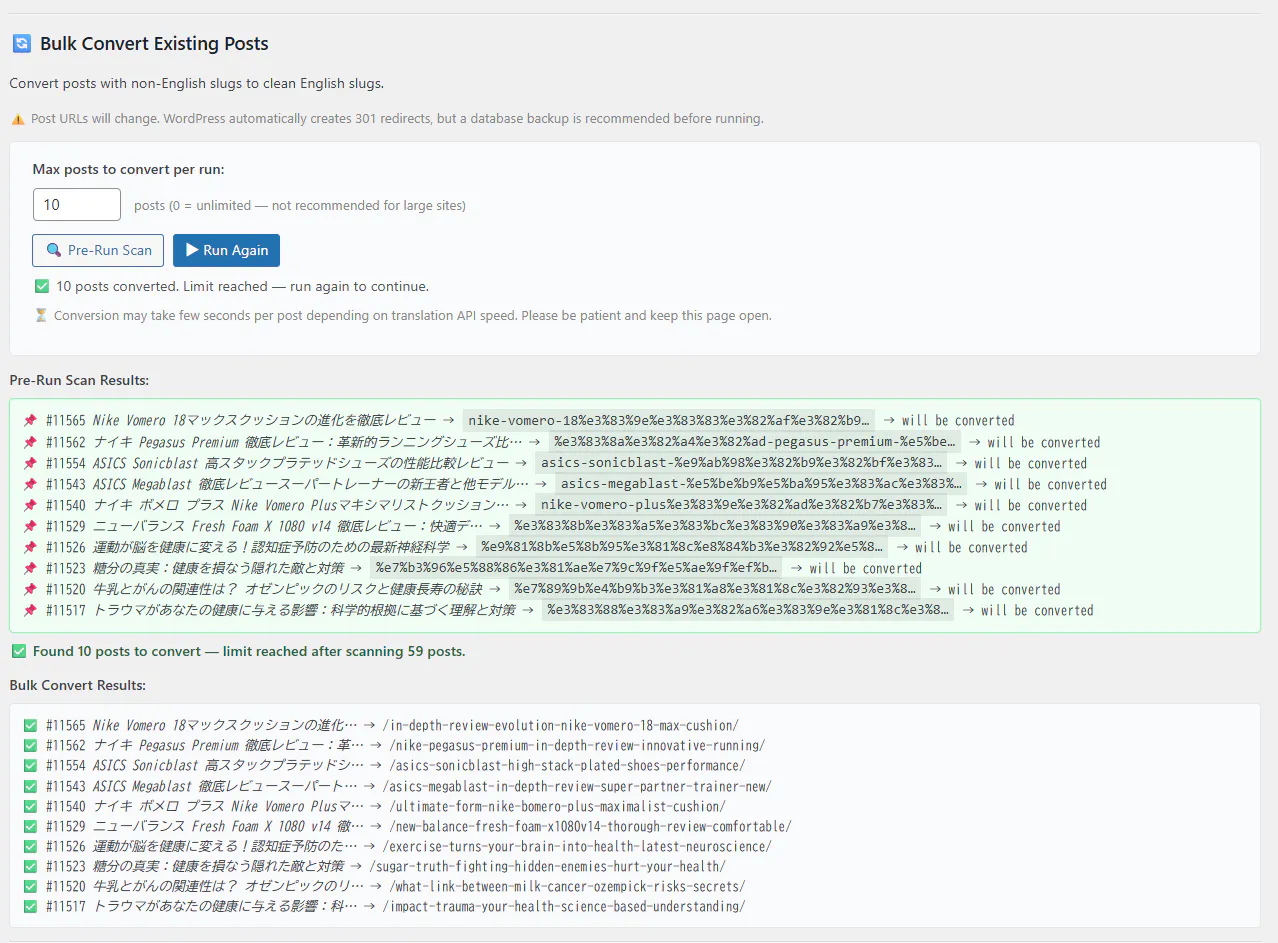
Before converting a single post, click Pre-Run Scan to see exactly which posts have non-ASCII slugs and how many. The scan checks every post in your database without making any translation API calls — so it uses zero of your daily quota. You get a full list of what will be converted before committing to anything. You can stop the scan at any time using the Stop button.
Set how many posts to convert in one session. Match this to your daily API quota — for example, if you have 50,000 characters/day and your average post title is ~20 characters, you can safely convert around 350 posts per day. Set a comfortable limit like 50–100, run it today, then run again tomorrow for the next batch.
Watch every conversion in real time. Each line in the log shows the post title, the old slug, an arrow, and the new clean English slug. A spinning animation appears while the API call is in progress. You always know exactly what changed and what the result was.
Stop Bulk Convert at any time — mid-scan or mid-conversion — by clicking the Stop button. The plugin is fully resumable. On the next run, posts that were already converted to English slugs are automatically skipped (the SQL query filters them out). Only remaining non-ASCII slugs are processed.
Every time a slug changes, WordPress automatically stores the old slug in _wp_old_slug and issues a 301 permanent redirect. Every old link — shared on social media, in emails, on other websites, in search engine indexes — continues to work. Google transfers SEO ranking to the new URL automatically.
Bulk Convert targets posts only. Pages are intentionally excluded — they’re high-value URLs (like your homepage, About page, Contact page) that are worth reviewing and updating one by one rather than in bulk. Use the Quick Edit button or Gutenberg editor to update individual pages.
The Full Translation Pipeline
From a Japanese title to a clean URL slug — here’s exactly what happens under the hood on every save.
When you save a post, the plugin scans the title using Unicode character range matching. No external API call is needed at this stage — it’s all done locally in PHP in milliseconds. Japanese is detected by Hiragana (U+3040–309F), Katakana (U+30A0–30FF), and CJK Unified Ideographs (U+4E00–9FFF). Korean by Hangul Syllables (U+AC00–D7AF). Arabic by the Arabic Unicode block (U+0600–06FF). Russian and other Cyrillic by the Cyrillic block. And so on for all 10 supported languages. Detection is 100% accurate for pure scripts and handles mixed-script titles correctly.
If no non-ASCII characters are detected, the plugin exits immediately — no API call is made and the existing slug is left unchanged.
The title is sent to the MyMemory Translation API (api.mymemory.translated.net) — a free, widely-used translation service used by millions of websites and applications. No API key is required. The plugin sends either an anonymous request (5,000 chars/day limit) or an email-authenticated request (50,000 chars/day limit) depending on your settings.
The API returns a natural English translation. If the response contains the “MYMEMORY WARNING” string, it means your daily quota is exhausted — the plugin handles this gracefully and leaves the existing slug unchanged rather than creating a broken slug.
The English translation is processed into a URL-safe slug:
① Converted to lowercase
② Common stop words removed: a, an, the, and, or, in, of, to, for, is, are, was, were, with, on, at, by, as
③ Non-alphanumeric characters replaced with hyphens
④ Multiple consecutive hyphens collapsed to single hyphens
⑤ Hyphens trimmed from start and end
⑥ Truncated to 60 characters maximum at a natural word boundary (no mid-word cuts)
Result: a short, readable, keyword-rich slug like tokyo-ramen-restaurant-guide instead of %E6%9D%B1%E4%BA%AC.
Before saving, the slug is passed through WordPress’s native wp_unique_post_slug() function. If two different posts translate to the same English slug (for example, two posts both titled “Tokyo Restaurant”), WordPress automatically appends -2, -3, etc. to make each slug unique. You’ll never have duplicate slugs causing conflicts.
The new slug is saved via wp_update_post() — the correct WordPress API, not raw database writes. WordPress then automatically:
① Stores the old slug in the _wp_old_slug post meta field
② Issues a 301 permanent redirect from the old URL to the new URL for all future visits
This means every link ever shared to the old percent-encoded URL — on social media, in emails, from other websites, in search engine indexes — automatically redirects to the clean new URL. Nothing breaks. Google sees the 301 and transfers SEO ranking to the new URL.
10 Languages Supported
Auto Slug Translator detects and translates titles from 10 languages and scripts. Detection uses Unicode character ranges — no AI needed, 100% accurate, instant.
Frequently Asked Questions
auto-slug-translator). Go to Plugins → Add New → Upload Plugin, upload the Pro zip, and WordPress will ask “Replace current with uploaded version?” — click yes. All your settings are preserved. Zero downtime, zero configuration needed after the upgrade._wp_old_slug post meta field and issues a 301 permanent redirect every time a slug changes. Links shared on social media, sent in emails, linked from other websites, and indexed in search engines all continue to work. Google transfers SEO ranking to the new URL automatically. Old links never break.wp_update_post, save_post, admin_menu, wp_unique_post_slug — that have been unchanged for over 10 years. WordPress is extremely careful about backwards compatibility. If anything ever does break due to a WordPress update, Pro license holders with an active support period receive fixes as priority updates.Help & Future Development
Your Donations Shape
This Plugin’s Future
Auto Slug Translator is free and will stay free. The Pro version covers basic maintenance costs, but deeper development — new languages, new features, WooCommerce support, Firefox port — depends entirely on community donations. Every contribution is a direct signal that you want this plugin to keep growing.
We’ll be direct: whether this plugin continues to receive active development honestly depends on how many people support it. If Auto Slug Translator has saved you time, improved your SEO, or helped clean up your multilingual blog — a one-time coffee is the best way to say “keep going.” No pressure either way. But every contribution matters and directly influences the roadmap.
Pro users: Email [email protected] — 48-hour response on business days.